
A slow or cluttered PC can be frustrating, especially when you’re unsure why it’s lagging. Cleaning up your computer not only improves speed but also enhances overall performance and efficiency. Many users accumulate unnecessary programs, temporary files, and cached data over time, which take up space and can cause slowdowns.
Regular maintenance, including removing unused apps, clearing browser cache, organizing files, and updating Windows and drivers, keeps your system running smoothly. Even beginners can follow simple steps to optimize their PC. This guide provides easy, safe, and effective methods to clean your computer and maintain long-term performance.
Read More: What is internet in computer
How to Clean Up a PC—Step-by-Step
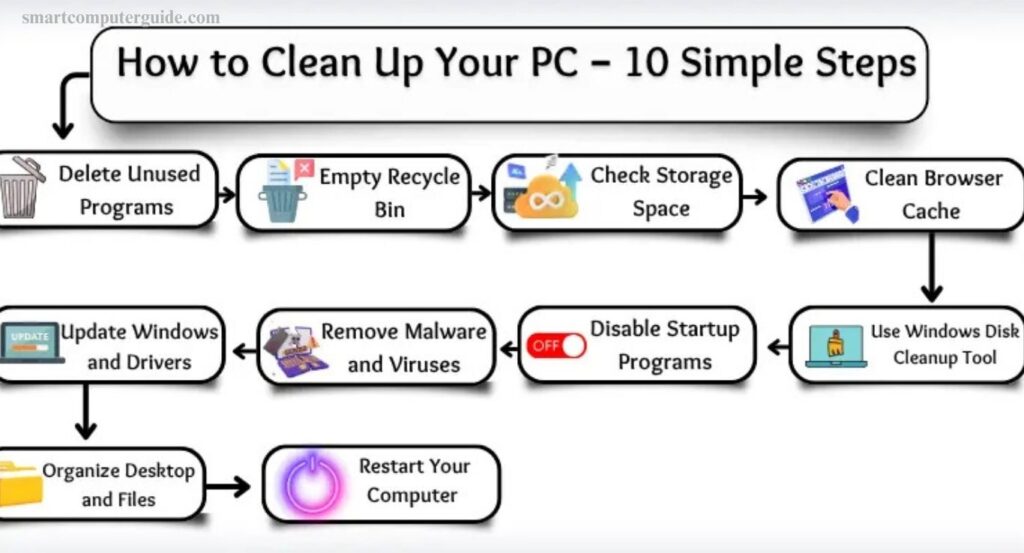
Cleaning your PC improves speed, performance, and overall efficiency. Follow these easy steps to make your computer feel like new again:
- Delete Unused Programs
- Empty Recycle Bin
- Check Storage Space
- Clean Browser Cache and History
- Use Windows Disk Cleanup Tool
- Disable Startup Programs
- Remove Malware and Viruses
- Update Windows and Drivers
- Organize Desktop and Files
- Restart Your Computer Regularly
Delete Unused Programs
Unused programs can take up valuable space and slow down your PC. Removing programs you no longer need helps improve performance and frees storage.
How to do it:
- Click the Start button.
- Type Add or remove programs in the search bar and press Enter.
- Browse the list of installed programs.
- Select the programs you don’t use.
- Click Uninstall.
- Follow the on-screen instructions to remove the program completely.
Regularly cleaning out unused programs keeps your PC faster and more efficient.
Empty Recycle Bin
When you delete files, they go to the Recycle Bin instead of leaving your PC immediately. These files still take up space, so emptying the Recycle Bin helps free storage and improve performance.
How to do it:
- Go to your Desktop.
- Locate the Recycle Bin icon and double-click to open it.
- Check for any files inside.
- Click Empty Recycle Bin.
- A confirmation box will appear—click Yes.
Once completed, the deleted files are permanently removed, giving your PC more free space.
Check Storage Space and Suggestions
Your PC can show which files and apps are using the most space and provide tips to free it up. This helps you identify what to remove for better performance.
How to do it:
- Click the Start button.
- Open Settings.
- Select System.
- Click Storage from the left menu.
- Wait for your PC to analyze space usage, showing apps, photos, videos, and more.
- Click any category to see details.
- Follow the on-screen suggestions to remove unnecessary files.
This keeps your PC organized and running efficiently.
Clean Browser Cache and History
Your browser stores cache and history to load websites faster, but over time, they can slow down your PC. Regularly clearing them helps improve speed and performance.
How to do it in Google Chrome:
- Open Google Chrome.
- Click the three dots in the top-right corner.
- Select Settings.
- Go to Privacy and Security from the side menu.
- Click Clear browsing data.
- Check Browsing history and Cached images and files.
- Click Clear Data to complete the process.
This keeps your browser running smoothly and your PC faster.
Use Windows Disk Cleanup Tool
Windows stores temporary and unnecessary files that take up space and slow down your PC. The Disk Cleanup tool helps remove these files safely.
How to do it:
- Click the Start button.
- Type Disk Cleanup in the search bar.
- Select the Disk Cleanup app.
- Choose your main drive (usually C:) and click OK.
- Wait for the scan to finish.
- Check the boxes for the files you want to delete.
- Click OK, then select Delete Files.
This frees up storage and improves PC performance.
Disable Startup Programs
Many programs launch automatically when you start your PC, which can slow down boot time. Disabling unnecessary startup programs helps your computer start faster.
How to do it:
- Press Ctrl + Shift + Esc to open Task Manager.
- Click the Startup tab.
- Review the list of programs that start with your PC.
- Select programs you don’t need at startup.
- Click Disable at the bottom.
Managing startup programs ensures a faster boot and smoother overall performance.
Remove Malware and Viruses
Malware and viruses can slow down your PC and damage important files. Regular scans help keep your computer safe and running smoothly.
How to do it using Windows Security:
- Click the Start button.
- Open Settings.
- Select Update & Security.
- Click Windows Security from the side menu.
- Choose Virus & threat protection.
- Press Quick Scan.
- Wait while your PC checks for threats.
- Follow the on-screen instructions to remove any detected malware or viruses.
Regular scans protect your PC and maintain optimal performance.
Update Windows and Drivers
Keeping Windows and drivers up to date ensures your PC runs smoothly, fixes bugs, and improves performance. Regular updates also help your hardware work efficiently.
How to update Windows:
- Click the Start button and open Settings.
- Select Update & Security.
- Click Windows Update from the side menu.
- Press Check for updates.
- If updates are available, click Download and wait for installation.
- Restart your PC if prompted.
How to update drivers:
- Right-click the Start button and select Device Manager.
- Choose a device, such as Display or Sound.
- Right-click it and select Update driver.
- Follow the on-screen instructions.
Regular updates keep your system secure and optimized.
Organize Desktop and Files
A cluttered desktop can make it difficult to find files and slow down your workflow. Keeping files organized improves efficiency and makes your PC look neat.
How to do it:
- Review your desktop and delete shortcuts you don’t need.
- Create folders for your files.
- Name folders clearly, such as Pictures, Work, or Games.
- Move files into the appropriate folders.
- Right-click the desktop and use Sort by or View to arrange icons neatly.
Regular organization keeps your PC tidy and makes files easy to access.
Restart Your Computer Regularly
Restarting your PC refreshes its system, fixes minor issues, and helps it run more smoothly. Regular rest ensures better performance and stability.
How to restart your PC:
- Click the Start menu in the bottom-left corner.
- Click the Power icon.
- Select Restart.
- Wait while your PC turns off and then back on.
- Allow all programs and services to load completely.
Frequent restarts keep your computer running efficiently and prevent slowdowns over time.
Frequently asked questions
Why is my PC running so slow?
Excessive files, unused programs, malware, or outdated updates can reduce performance.
How often should I clean my PC?
Monthly cleanup of files, cache, and unnecessary programs is recommended.
Will deleting programs remove my personal files?
No, uninstalling programs only removes the application, not your personal documents.
What is the Recycle Bin for?
It temporarily stores deleted files before permanently removing them.
Can clearing cache improve PC speed?
Yes, clearing browser cache and temporary files frees space and boosts performance.
Is Disk Cleanup safe to use?
Yes, it removes temporary and unneeded system files without harming your data.
Should I disable all startup programs?
Only disable programs you don’t need at startup; some are essential for system functions.
How do I know if my PC has viruses?
Running a trusted antivirus scan will detect malware and other threats.
Why are Windows and driver updates important?
Updates fix bugs, improve security, and ensure your hardware and software run smoothly.
Conclusion
Regularly cleaning and maintaining your PC is essential for optimal performance. By deleting unused programs, emptying the Recycle Bin, checking storage, clearing cache, using Disk Cleanup, managing startup apps, removing malware, updating Windows and drivers, organizing files, and restarting your computer, you can keep your system running smoothly and efficiently. These simple steps not only free up space but also prevent slowdowns, improve security, and extend the life of your PC. Following this guide ensures your computer stays fast, reliable, and ready for daily tasks, even if you’re not tech-savvy.