
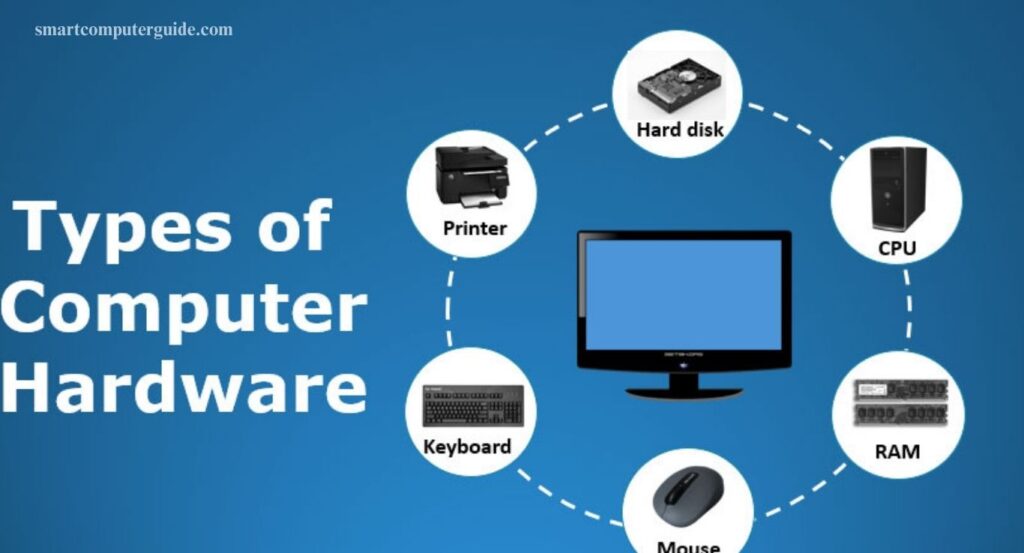
Have you ever wondered how a computer works? A computer relies on various parts, both inside and outside, such as the keyboard, monitor, and tiny microchips. These components, called hardware, work together to perform tasks like displaying images, running games, typing documents, and processing information. Hardware forms the physical foundation of a computer, while software provides the instructions that tell it what to do.
Understanding computer hardware helps us see how each part contributes to the system’s performance and functionality. Together, hardware and software bring computers to life, making them powerful tools for work, learning, and entertainment.
Read More: Mechanical Keyboards: A Simple Beginner’s Guide
What is Computer Hardware?
Computer hardware refers to the physical components of a computer that you can see and touch. These parts work together to operate the system and perform different tasks. Common examples include the monitor, keyboard, mouse, and the Central Processing Unit. Each component plays a specific role that helps the computer run efficiently. Without hardware, a computer cannot process data, run programs, or perform any function.
Types of Computer Hardware
Computer hardware is divided into internal and external types. Internal hardware, like the CPU and memory, handles processing and storage. External hardware, such as keyboards, mice, and monitors, allows users to interact with the computer. Both types work together to ensure smooth operation and efficient performance.
Internal Hardware
Internal hardware consists of components inside the computer that are not visible from the outside. These parts work together to run programs, process data, and store information. Key internal hardware includes:
- Central Processing Unit (CPU)
- Motherboard
- RAM (Random Access Memory)
- Hard Drive (HDD) & Solid-State Drive (SSD)
- Graphics Processing Unit (GPU)
- Power Supply Unit (PSU)
Processing Unit
The CPU (Central Processing Unit) is the core of the computer, responsible for performing calculations, processing data, and running programs efficiently.
Examples:
- CPU: Executes instructions and manages all tasks for smooth operation.
- GPU (Graphics Processing Unit): Manages graphics and visual effects, improving video quality and gaming performance.
Motherboard
The motherboard is the central component inside a computer that connects all other parts. It allows the CPU, memory, and other hardware to work together, enabling the computer to run programs and perform tasks efficiently.
Examples:
- Expansion Slots: Slots on the motherboard for adding extra cards, like a graphics card.
- Chipset: A set of electronic components that helps the CPU communicate with other hardware.
RAM (Random Access Memory)
RAM is temporary memory that helps a computer run programs quickly by storing data while it’s in use. It allows smooth multitasking and faster performance.
Examples:
- DDR RAM: High-speed memory that improves program performance.
- SDRAM: Synchronized with the computer’s clock to enhance overall speed and efficiency.
Hard Drive
A hard drive is a storage device that keeps all your computer’s data, including files, pictures, and programs, even when the computer is turned off. It allows the computer to read and write data for future use.
Example: Saving a school project stores it on the hard drive, so you can access it anytime later.
Solid-State Drive (SSD)
A solid-state drive (SSD) stores data using flash memory, offering faster performance than traditional hard drives. SSDs speed up boot times, program loading, and file access.
Examples:
- SATA SSD: Uses standard hard drive connections but provides much faster speeds.
- NVMe SSD: Connects directly to the motherboard, delivering even quicker data access and higher performance.
Graphics Card
A graphics card enhances a computer’s ability to display images, videos, and games by processing graphics efficiently. It improves visual quality and performance.
Examples:
- GPU (Graphics Processing Unit): The core of the graphics card that handles all graphic processing tasks.
- Video Memory: Stores image and video data, ensuring faster loading and smoother visuals on the screen.
Power Supply
The power supply provides electricity to all computer components, converting wall power into the correct type for safe operation.
Examples:
- Power Supply Unit (PSU): Converts electrical power from the outlet to the form the computer needs.
- Cables: Connect the PSU to the motherboard and other components, supplying them with electricity to function properly.
External Hardware
External hardware consists of components outside the computer that you can see and touch. These devices allow users to interact with the computer and perform various tasks.
Types of External Hardware:
- Input Devices: Tools like keyboards and mice used to enter data.
- Output Devices: Devices such as monitors and printers that display results.
- Storage Devices: External drives and USBs that store data.
- Networking Devices: Equipment like routers and modems that connect computers to networks and the internet.
Input Devices
Input devices allow users to send commands and information to the computer. They are essential for interaction, as the computer cannot receive instructions without them.
Examples:
- Keyboard: Used to type letters, numbers, and commands.
- Mouse: Used to point, click, and navigate on the screen.
Output Devices
Output devices show or produce the results processed by the computer, allowing us to see or hear the information.
Examples:
- Monitor: Displays images, videos, and text on the screen.
- Printer: Prints documents and pictures on paper for physical use.
Storage Devices
Storage devices save and protect data such as documents, pictures, and programs, allowing access whenever needed. They can be internal or portable.
Examples:
- External HDD: Stores all files, programs, and data in one central location.
- USB Drive: A small, portable device for storing and transferring files between computers.
Networking Devices
Networking devices enable computers to connect and communicate with each other, sharing data over the internet or local networks.
Examples:
- Modem: Connects your computer to the internet.
- Router: Directs data between devices and the internet.
- NIC (Network Interface Card): Allows a computer to join a network.
Uses of Computer Hardware
Computer hardware powers a computer, enabling it to process information, store data, and connect to devices. Without hardware, a computer cannot function.
Key Uses:
- Accessing the Internet: Connects the computer to the web for browsing and research.
- Playing Games: CPU and graphics card run and display games smoothly.
- Watching Videos: Monitor and CPU deliver clear video playback.
- Typing Documents: Keyboard and screen allow writing and editing text.
- Storing Files: Hard drives and SSDs save photos, videos, and documents.
- Creating Presentations: Hardware supports designing slideshows for work or school.
- Printing Documents: Printers produce physical copies of files.
- Listening to Music: Speakers provide audio output.
- Connecting with Others: Microphones and cameras enable video calls.
- Running Software: CPU and RAM execute programs and applications efficiently.
How Computer Hardware Works Together
Computer hardware works as a team to run programs, process data, and display results. Each component has a specific role, and together they ensure the computer functions efficiently.
Key Roles:
- CPU: Processes information and manages other components.
- RAM: Stores temporary data for quick access.
- Motherboard: Connects all parts and enables communication.
- Storage Devices: Save data for long-term use.
- Power Supply: Provides electricity to all components.
- Input Devices: Send data and commands to the computer.
- Output Devices: Display results and information.
- Graphics Card: Enhances images and videos.
- Cooling System: Prevents overheating for stable performance.
Advantages and Disadvantages of Computer Hardware
Computer hardware enables computers to function efficiently, but it has both benefits and drawbacks.
Advantages:
- Works quickly and efficiently
- Stores large amounts of data
- Runs multiple programs simultaneously
- Supports multitasking
- Connects with other devices easily
- Delivers high-quality graphics
- Laptops and tablets are portable
- Input devices are easy to use
- Provides internet connectivity
- Durable and long-lasting
Disadvantages:
- Can become outdated
- Some components are expensive
- Data loss may occur if hardware fails
- High power consumption
- Difficult to repair
- Requires regular maintenance
- Some parts are heavy
- May slow down over time
- Compatibility issues between components
- Sensitive to heat, dust, or damage
Frequently Asked Questions
What is computer hardware?
Computer hardware includes all physical parts of a computer that you can touch, like the CPU, motherboard, and keyboard.
What is the difference between internal and external hardware?
Internal hardware is inside the computer, such as the CPU and RAM. External hardware is outside, like the monitor, keyboard, and printer.
What does a CPU do?
The CPU processes data, runs programs, and controls other hardware components.
What is the role of RAM?
RAM stores temporary data to allow the computer to run programs quickly and efficiently.
Why is a graphics card important?
A graphics card improves image, video, and game quality by processing visual data.
What do storage devices do?
Storage devices, like HDDs and SSDs, save data and files for long-term use.
Why is the motherboard important?
The motherboard connects all hardware components and allows them to communicate and work together.
Conclusion
Computer hardware forms the foundation of every computer, enabling it to process data, run programs, and interact with users. Internal components like the CPU, RAM, and motherboard work together with external devices such as keyboards, monitors, and printers to perform tasks efficiently. While hardware offers speed, storage, multitasking, and high-quality graphics, it also has limitations like wear, cost, and maintenance needs. Understanding how hardware works and its advantages and disadvantages helps users choose, maintain, and use computers effectively, ensuring smooth performance and a better computing experience.