
Nearly 90% of computer problems can be resolved through basic troubleshooting. Learning computer troubleshooting is crucial for every user, as it enables quick identification of issues, effective error correction, and smooth system performance. By mastering these simple techniques, you can save both time and money while preventing minor problems from escalating into major ones.
Regular troubleshooting not only keeps your computer running efficiently but also enhances its lifespan and reliability. Whether it’s software glitches, hardware errors, or connectivity issues, understanding how to troubleshoot ensures a faster, stress-free computing experience.
Read More: Types of network topologies
What is troubleshooting in computer?
Troubleshooting in computers is the process of identifying and fixing problems that affect performance. It follows a step-by-step approach to find the root cause of errors, whether in hardware or software. The main goal is to resolve issues quickly and prevent them from recurring. By troubleshooting effectively, you ensure your computer runs smoothly, avoids interruptions, and maintains reliability. This essential skill helps users save time, reduce costs, and extend the lifespan of their systems, making computing more efficient and stress-free.
Importance of Troubleshooting
Troubleshooting is essential for keeping computers running efficiently. It helps detect problems early, preventing them from escalating into major issues. By addressing errors promptly, users save time, reduce costs, and avoid costly repairs. Effective troubleshooting ensures smooth system performance, maintains both hardware and software reliability, and minimizes user frustration.
Key Benefits:
- Quickly identifies issues before they worsen
- Ensures smooth computer operation
- Reduces repair expenses
- Enhances user experience
- Maintains overall system performance
Types of Computer Troubleshooting
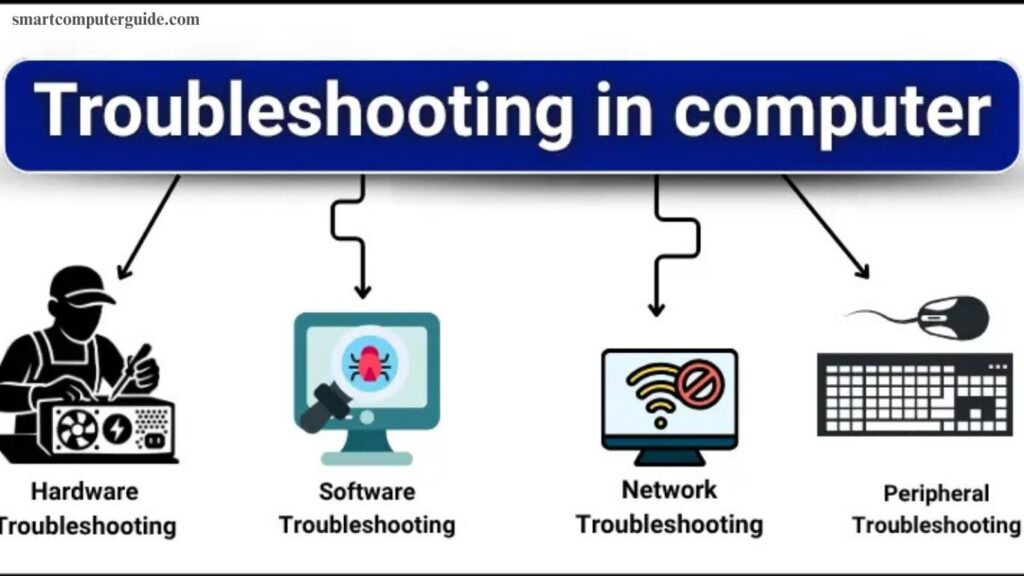
Computers can encounter various issues that affect performance, and troubleshooting resolves them systematically. Common types include:
- Hardware Troubleshooting
- Software Troubleshooting
- Network Troubleshooting
- Peripheral Troubleshooting
Each type ensures your system runs efficiently, reduces downtime, and prevents minor issues from becoming major problems.
Hardware Troubleshooting
Hardware troubleshooting involves checking all physical components of your computer, including the monitor, keyboard, mouse, RAM, hard drive, and motherboard. Faulty hardware can cause errors or prevent your computer from working. Users can fix minor issues like loose cables or dust, while major problems may require a technician’s help.
Software Troubleshooting
Software troubleshooting focuses on programs and operating systems. It resolves issues like application crashes, system errors, viruses, or slow performance. Users can update software, reinstall programs, or run virus scans to keep their computer running smoothly and prevent future software problems.
Network Troubleshooting
Network troubleshooting addresses internet or network connection problems, including slow connections, LAN issues, or Wi-Fi failures. Solutions often include checking cables, restarting routers, or running network diagnostics to restore connectivity.
Peripheral Troubleshooting
Peripheral troubleshooting deals with external devices such as printers, scanners, and external drives. Common fixes include reconnecting cables, updating drivers, or restarting the computer to ensure devices work properly.
Steps in Computer Troubleshooting
Troubleshooting helps identify and fix computer problems efficiently. Follow these simple steps:
- Identify the Problem: Observe what’s not working and note any error messages or unusual behavior.
- Gather Information: Determine when the issue started and what actions preceded it.
- Analyze the Cause: Decide if the problem is hardware, software, or network-related.
- Apply a Solution: Try fixes like restarting the computer, checking cables, or updating software.
- Test the Solution: Ensure the problem is resolved and the system works properly.
- Document the Fix: Record the steps taken for future reference.
Common Troubleshooting Techniques
These techniques help resolve computer issues quickly and efficiently.
Basic Techniques
- Restart your computer to fix minor problems.
- Check all cables and connections.
- Ensure devices are powered on.
- Close unnecessary programs to improve performance.
Advanced Techniques
- Update software and drivers regularly.
- Run antivirus and malware scans to remove threats.
- Use built-in tools like Disk Check or Windows Troubleshooter.
- Review system settings to identify and correct errors.
Applying these techniques can prevent problems, improve system performance, and save time and money.
Tools for Troubleshooting
Using the right tools makes computer troubleshooting faster and more effective, helping you identify and fix problems step by step.
Built-in Tools
- Windows Troubleshooter: Automatically resolves common issues.
- Disk Check: Detects and repairs hard drive errors.
- Event Viewer: Displays error messages to understand problems.
- Device Manager: Monitors hardware and updates drivers.
Third-Party Tools
- CCleaner: Cleans junk files and boosts performance.
- Malwarebytes: Scans and removes viruses and malware.
- Speccy: Provides detailed hardware information.
Network Tools
- Ping: Tests network connectivity.
- Tracert: Identifies where network issues occur.
- Wireshark: Analyzes network traffic for errors.
Using these tools ensures smoother performance, faster problem resolution, and reliable computer operation.
Troubleshooting Tips
These tips help beginners resolve computer problems quickly and efficiently while avoiding mistakes:
- Back Up Data: Always save important files before troubleshooting.
- Start Simple: Try easy fixes first, like restarting the computer.
- Keep a Checklist: Track common problems and their solutions.
- Read Error Messages: They often provide clues to the issue.
- Stay Calm: Patience helps you fix problems more effectively.
Following these tips saves time, reduces frustration, and ensures smoother computer performance.
Examples of Troubleshooting
Troubleshooting helps fix common computer problems quickly and effectively. Examples include:
- Computer Not Turning On: Check the power cable and power button.
- Slow Computer: Close unnecessary programs or remove junk files.
- No Sound: Ensure speakers are connected and not muted.
- Printer Not Working: Reconnect the printer or reinstall its driver.
- Internet Not Connecting: Restart the router or verify Wi-Fi settings.
- Screen Freezing: Restart the computer or update the software.
These examples show how simple steps can solve everyday computer issues and keep systems running smoothly.
Frequently Asked Questions
What is computer troubleshooting?
Computer troubleshooting is the process of identifying and fixing problems that prevent a computer from working properly, whether in hardware, software, or network.
Why is troubleshooting important?
It prevents minor issues from becoming major problems, saves time and money, improves system performance, and extends the lifespan of your computer.
What are the types of troubleshooting?
The main types are hardware, software, network, and peripheral troubleshooting. Each focuses on specific components or issues.
How do I start troubleshooting a computer?
Begin by identifying the problem, gathering information, analyzing the cause, applying a solution, testing it, and documenting the fix.
Can I troubleshoot my computer without technical skills?
Yes, basic troubleshooting like restarting, checking cables, or closing unnecessary programs can be done by beginners.
What tools help in troubleshooting?
Built-in tools like Windows Troubleshooter, Disk Check, Event Viewer, and Device Manager, plus third-party tools like CCleaner and Malwarebytes, are very helpful.
How can I fix slow computer performance?
Close extra programs, delete junk files, update software, and run antivirus scans to improve speed.
How do I troubleshoot network problems?
Check cables, restart routers, run Ping or Tracert tests, and verify Wi-Fi settings to identify connectivity issues.
What should I do if hardware fails?
Inspect components, fix minor issues like loose cables, clean dust, or consult a technician for serious hardware problems.
Conclusion
Effective computer troubleshooting is essential for keeping your system running smoothly, saving time, and avoiding costly repairs. By understanding different types of troubleshooting, following step-by-step processes, using the right tools, and applying simple tips, both beginners and advanced users can resolve issues quickly. Regular troubleshooting not only fixes problems but also prevents them from recurring, ensuring better performance, reliability, and longevity of your computer.