
Keeping your PC fast and secure requires more than just turning it on. Over time, computers can slow down, crash, or become vulnerable to viruses and errors. A proper PC maintenance guide for speed and safety helps you prevent these issues, extend your computer’s lifespan, and optimize performance. From daily habits and weekly checks to advanced tips and hardware care, this guide covers everything you need to keep your system running smoothly. Whether you’re a casual user or a gamer, following these steps ensures your PC stays reliable, secure, and ready for any task.
Read More: HTTP vs HTTPS: Key Differences Explained
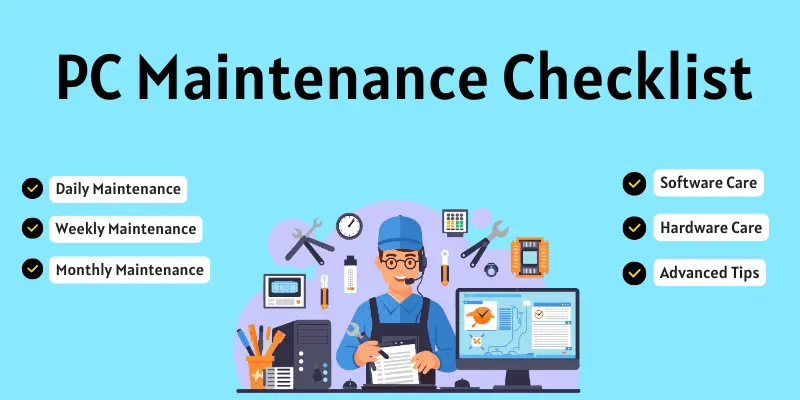
PC Maintenance Checklist: Step-by-Step Guide
Keeping your PC fast, secure, and long-lasting requires regular maintenance. Follow this checklist daily, weekly, and monthly to optimize performance and prevent problems.
Daily Maintenance
Daily care takes just a few minutes but prevents major issues:
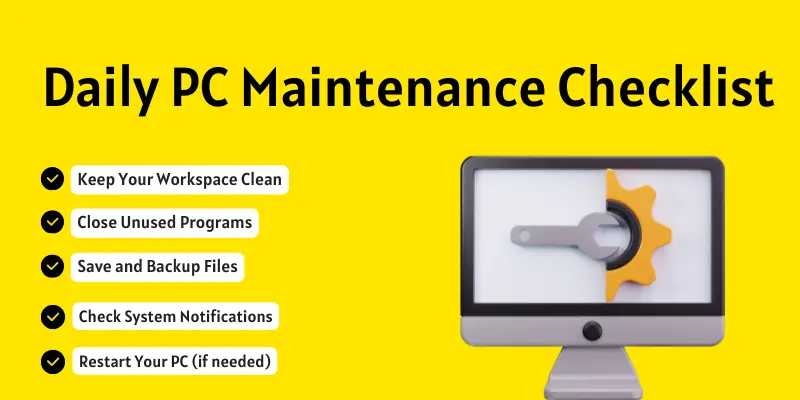
- Keep Your Workspace Clean: Wipe your desk, keyboard, and mouse. Avoid food and drinks near your PC to prevent dust and spills.
- Close Unused Programs: Free up memory by shutting apps you don’t need. This keeps your PC smooth and responsive.
- Save and Backup Files: Save important files and back them up to cloud storage or an external drive.
- Check System Notifications: Address updates, warnings, or errors promptly.
- Restart Your PC if Needed: Refresh memory and close unnecessary processes.
Weekly Maintenance
Spend a little extra time each week for deeper care:
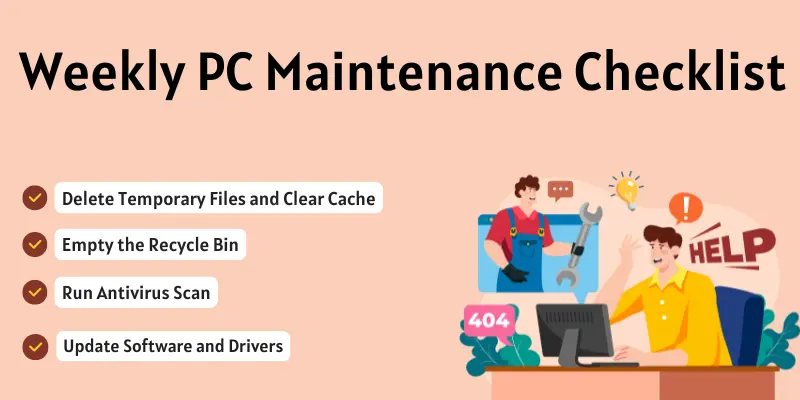
- Delete Temporary Files & Clear Cache: Free up storage and improve speed.
- Empty the Recycle Bin: Keep storage uncluttered.
- Run Antivirus Scan: Detect and remove malware threats.
- Update Software & Drivers: Fix bugs and boost performance.
Monthly Maintenance
Monthly checks prevent long-term issues:
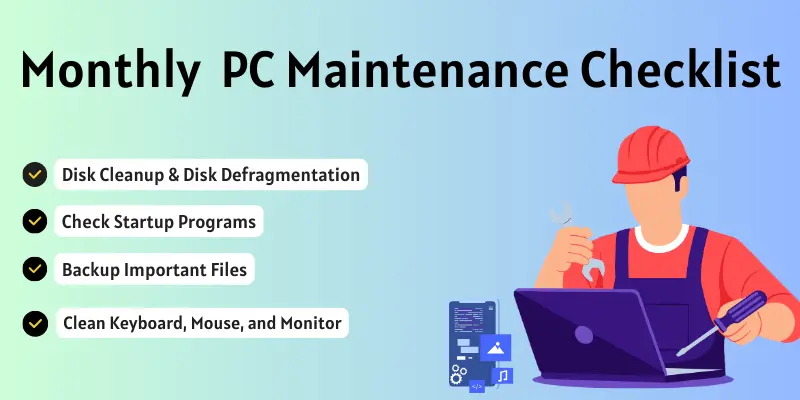
- Disk Cleanup & Defragmentation: Organize files and improve hard drive speed.
- Check Startup Programs: Disable unnecessary auto-start apps to speed boot time.
- Backup Important Files: Make a full backup to an external drive or cloud.
- Clean Keyboard, Mouse & Monitor: Prevent dust buildup that can damage hardware.
Software Maintenance
Healthy software ensures smooth operation and security:
- Update Operating System Regularly: Install Windows or Mac updates to fix bugs and enhance security.
- Keep Antivirus & Firewall Updated: Protect your PC from malware and threats.
- Uninstall Unused Programs: Free space and improve speed.
- Remove Unnecessary Browser Extensions: Reduce browser lag.
Hardware Maintenance
Physical care keeps your PC running efficiently:
- Clean Dust from CPU, Fans & Vents: Prevent overheating and slowdowns.
- Check for Overheating & Noises: Strange sounds or heat may indicate hardware issues.
- Inspect Cables & Connections: Secure loose wires to avoid errors or damage.
- Monitor RAM & Storage Usage: Avoid overloading memory or storage.
Advanced Maintenance Tips
Advanced maintenance helps identify hidden issues and keeps your PC performing like new:
- Use Optimization Tools Carefully: Only use trusted programs to boost performance. Avoid unknown software.
- Check System Logs for Errors: Review logs to fix small problems before they escalate.
- Monitor CPU & GPU Performance: Track usage to prevent slowdowns or overheating.
- Create System Restore Points: Save your PC settings to revert if something goes wrong.
PC Maintenance for Gamers
Gaming puts extra strain on PCs. Regular maintenance improves performance and longevity:
- Optimize GPU & Game Settings: Adjust graphics for smooth gameplay and reduced lag.
- Keep Graphics Drivers Updated: Updated drivers fix bugs and improve performance.
- Monitor Temperatures: Track CPU and GPU heat to prevent damage.
- Clean Peripherals & Gaming Area: Dust keyboards, mouse, and console area weekly.
Tools and Software for PC Maintenance
The right tools simplify maintenance and prevent errors:
- Disk Cleanup Tools: Use Windows Disk Cleanup or safe programs like CCleaner.
- Antivirus Software: Protect your PC with Avast, Norton, or Windows Defender.
- Backup Solutions: Save files to cloud storage or external drives.
- Monitoring Tools: Programs like HWMonitor or Speccy track CPU, GPU, and temperature.
Signs Your PC Needs Maintenance
Noticeable signs indicate your PC needs care:
- Slow Performance: Programs take longer to open.
- Frequent Crashes or Freezes: Random shutdowns or freezes signal problems.
- Unusual Noises: Strange fan or hard drive sounds may indicate hardware issues.
- Overheating: Excessive heat can damage components.
- Error Messages: Frequent pop-ups indicate software or system issues.
Common Mistakes to Avoid
Avoid these mistakes to keep your PC fast and safe:
- Ignoring Updates: Outdated software slows performance and risks security.
- Using Unverified Tools: Only use trusted optimization programs.
- Not Backing Up Data: Always save important files to prevent loss.
- Neglecting Physical Cleaning: Dust and dirt can damage hardware; clean regularly.
Frequently Asked Questions
Why is PC maintenance important?
Regular maintenance keeps your PC fast, secure, and long-lasting. It prevents crashes, data loss, and hardware damage while improving overall performance.
How often should I perform PC maintenance?
Daily tasks include closing unused programs and saving files. Weekly tasks involve cleaning caches and running antivirus scans. Monthly tasks cover disk cleanup, backups, and hardware cleaning.
What software tools help with PC maintenance?
Disk cleanup tools like Windows Disk Cleanup, antivirus programs such as Norton or Avast, backup solutions like Google Drive, and monitoring software like HWMonitor are essential for smooth operation.
How can I prevent my PC from overheating?
Keep your PC clean, monitor CPU and GPU temperatures, optimize airflow, and avoid running too many heavy programs simultaneously.
What are the signs my PC needs maintenance?
Signs include slow performance, frequent crashes or freezes, unusual noises, overheating, and recurring error messages. Addressing these early prevents bigger issues.
Can gamers benefit from PC maintenance?
Yes. Regularly updating graphics drivers, optimizing GPU/game settings, monitoring temperatures, and cleaning gaming peripherals ensure smooth gameplay and prevent hardware damage.
What common mistakes should I avoid?
Avoid ignoring updates, using unverified optimization tools, neglecting backups, and skipping physical cleaning. These mistakes can slow your PC or cause permanent damage.